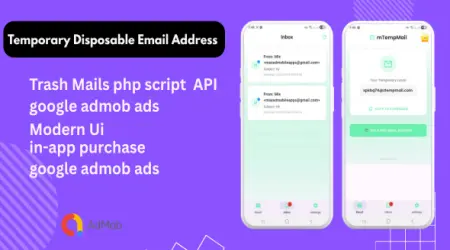
How to Create a Temp Mail in 2026 (Step-by-Step)
How to Create a Temp Mail in 2026 (Step-by-Step)
To create a temp mail, open a temporary email service like MTempMail, copy the address shown on the page, and use it wherever you need an email — no sign-up or password required. A disposable inbox is generated automatically the moment the page loads, and any message sent to it appears in real time.
Create a temp mail in 4 steps
- Open the generator. Go to MTempMail — a random address is ready instantly.
- Copy the address. Click the copy button next to the email field.
- Paste it where you need it. Use it on any sign-up, trial or verification form.
- Read the incoming mail. The verification email or code appears in the inbox below in seconds.
Choose a different domain or address
You can switch domains (free .com and .edu options), refresh for a brand-new address, or grab a burner email for one-time use. Prefer a Gmail-style address? See temporary Gmail.
When to use a temp mail
Use it for free trials, one-off sign-ups, downloads behind an email gate, forum registrations, and receiving OTP codes — anywhere you don't want to expose your real inbox. For accounts you must keep (banking, work), always use a permanent mailbox you control.
Frequently asked questions
Is creating a temp mail free?
Yes, it is completely free with no sign-up, no password and no limits.
Do I need to register?
No. An address is generated automatically when you open the page — no account needed.
Can I receive verification codes?
Yes, verification emails, OTP codes, links and attachments arrive in the disposable inbox in real time.
How long does the temp mail last?
It lives for your session and can be refreshed anytime. For long-term access, use a permanent mailbox.